Gaming App Permissions: 7 Smart Red Flags to Check in 2026
You downloaded an APK from a link someone sent you, tapped install, and before the first screen even loaded it asked for your SMS, your contacts and something called Accessibility Service — and that is exactly the moment to stop and think about gaming app permissions. Most permission advice online is written for ordinary Android apps: a weather widget, a photo editor, a keyboard. Real-money gaming APKs are a different situation, because they are distributed outside app stores, they handle a wallet balance, and the account they control is tied to a phone number that also receives bank OTPs.
That combination is what attackers are interested in. This breakdown covers what such an app plausibly needs, which requests have no honest explanation, and how to review and withdraw access on your own phone step by step. (18+ only. Real-money play carries risk and losses are the expected outcome; nothing here is advice about playing.)
Why gaming app permissions deserve a second look
A permission is not a setting. It is a standing grant. When you tap Allow, you are not answering a question about this moment — you are handing the app an ability it keeps until you take it back, and it can use that ability silently in the background, weeks later, with no prompt and no notification.
That matters more for this category than for almost any other, for three reasons that stack on top of each other. First, these apps usually arrive as a sideloaded APK file rather than through a store listing, so nobody has reviewed what the package actually contains. Second, the file you installed can be a repackaged copy of a real app with extra code added — the icon, the colours and the login screen look right, and the difference is invisible from the outside. Third, the app is already sitting next to the thing attackers want: a phone number used for one-time passcodes, and a balance that can be moved.
There is also a quieter problem. Because these apps are installed outside a store, they often cannot update themselves through normal channels, so they ask for the ability to install other packages — and once you grant that, the app you checked today can be replaced by something you never checked at all. Reviewing gaming app permissions is therefore not a one-off chore. It is something to redo after any in-app update prompt.
It helps to separate two questions that people tend to merge. The first is whether the app is what it claims to be, which is a question about the file and where it came from. The second is what the app is able to do once it is running, which is a question about permissions. A genuine app with excessive permissions is still carrying risk you did not need to take on, and a counterfeit app with modest permissions can still be collecting what you type into it. Checking both is quick; checking only one leaves an obvious gap.
None of this means every permission request is hostile. A game that lets you set a profile picture does need to read an image. A game that tells you when a round closed does need notification access. The skill worth building is telling the difference between a request that matches a visible feature and a request that matches nothing you can point to on screen.
What a real-money gaming app genuinely needs
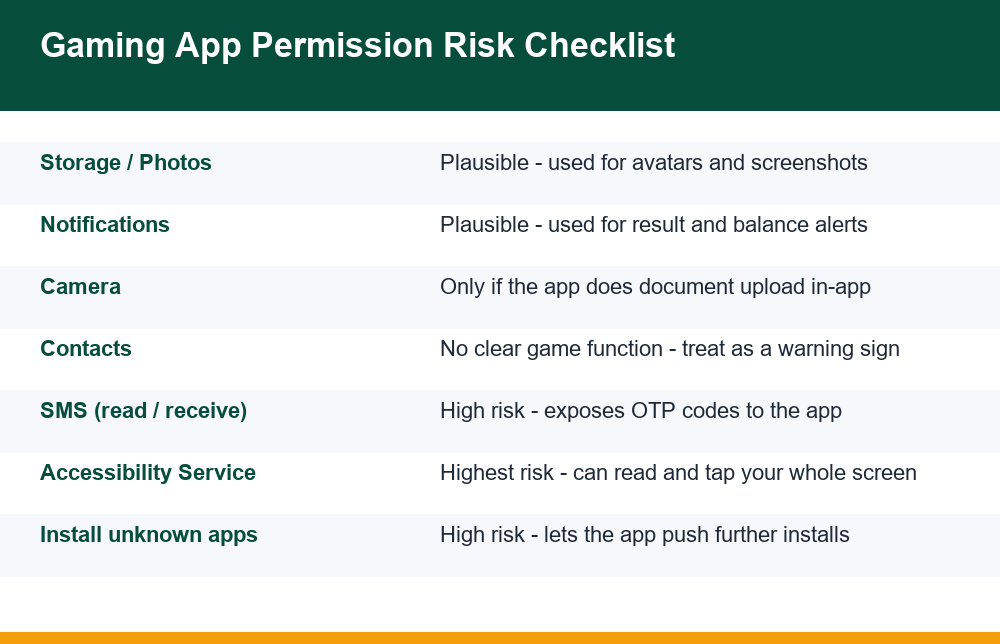
Start from the opposite direction to the usual advice. Instead of asking “is this permission dangerous”, ask “which button in this app would stop working if I said no?” If you cannot name the button, the request is unexplained. Here is how the common requests map onto real features.
| Permission | Honest use in a gaming app | What to do |
|---|---|---|
| Notifications | Round results, wallet credit alerts, withdrawal status | Reasonable to allow; can be turned off later without breaking the app |
| Photos / media | Choosing a profile picture, saving or sharing a screenshot | Allow only when you tap the feature, and prefer the single-file picker |
| Camera | Scanning a QR code or taking a document photo inside the app | Allow at the moment of use, not at install |
| Storage (full access) | Rarely needed on modern Android versions | Decline; the scoped photo picker covers the real use |
| Location | No gameplay function in a card or colour game | Decline |
| Contacts | Nothing a referral link cannot do better | Decline |
| SMS read / receive | No legitimate use; OTP autofill does not require it | Decline, and treat the request itself as a warning |
| Phone / call log | No gameplay function | Decline |
| Accessibility Service | Only genuine for screen readers and assistive tools | Never grant to a gaming app |
| Install unknown apps | Self-updating outside a store | Decline; update by downloading deliberately yourself |
| Draw over other apps | Floating widgets, chat heads | Decline; this is also how fake overlays are built |
| Battery optimisation exemption | Staying connected during a live round | Allow only if you genuinely see disconnections |
Read that table once and the shape of the problem becomes clear. The permissions with an honest column entry are all tied to something you can see and tap. The ones to decline are, almost without exception, permissions that serve the app’s interest in you rather than your interest in the app.
Timing is part of this too. Android has moved steadily towards runtime requests, which means a well-built app can wait until you reach the feature before asking. That design gives you context: the prompt arrives attached to an action you just took, so you can judge it. An app that front-loads everything at launch removes that context deliberately, and the absence of context is itself a signal worth reading.
One more practical point: modern Android splits many of these into finer grains than the old all-or-nothing model. Photo access can be limited to specific images you select. Location can be approximate rather than precise. Notification access can be revoked without uninstalling. Use the narrowest option the system offers, every time. A narrower grant is not a compromise — it is the same feature with less exposure.
7 red flags in gaming app permissions
These are the seven signals worth treating as a stop sign rather than a shrug. Any one of them is enough to pause the install and look harder at where the file came from. Two or more together, and the sensible move is to not install at all.
- It asks for SMS access. There is no gaming feature that requires reading your messages. Android’s own autofill shows a one-time code as a keyboard suggestion without any app reading your inbox. A request here is the single clearest red flag in the whole list.
- It asks for Accessibility Service. This grant lets an app read everything drawn on your screen and simulate taps anywhere on the device, including in other apps. For a game, there is no version of this that is innocent.
- It asks for permissions before showing you anything. A well-built app requests access at the point of use — you tap change avatar, it asks for a photo. A wall of prompts on first launch, before you have seen a single feature, means the app wants the grants more than it wants to explain them.
- It asks to install other apps. Known as “install unknown apps” or “install from this source”, this turns the app into a delivery channel. Whatever you reviewed can be swapped for something else afterwards.
- It asks for notification access rather than permission to post notifications. These sound the same and are not. Posting notifications is normal. Reading your notifications means seeing the content of every alert that lands on the device, including codes and bank messages.
- It refuses to run when you decline. Some gating is normal — no camera, no QR scan. But an app that closes itself or blocks the login screen because you said no to contacts is telling you the data collection is the product.
- The permission list does not match the app’s size or purpose. A simple colour-prediction interface that requests a dozen sensitive permissions is not a simple interface. The mismatch is the information.
The red flags above are about the app. There is a parallel set of warning signs about the source — a download link that arrives in a forwarded message, a page that pressures you to install within minutes, a site that cannot be reached except through that one link. Our breakdown of how to tell a cloned or counterfeit gaming app apart from the original covers those source-side signals in detail, and the two checks work best together: verify where the file came from, then verify what it asks for.
It is worth saying plainly that an app can also be over-permissioned through sloppiness rather than malice. Some developers request broad access because it was easier than implementing the narrow version. That is not an attack, but it is still exposure you are carrying for no benefit, and the right response is identical: decline, and see whether anything you actually use stops working.
Why would a gaming app ask to read my SMS?
The reason given is almost always convenience: “so we can verify your number automatically” or “to fill in your OTP for you”. It sounds helpful, and it is technically true that an app with SMS read access can detect a verification code and fill the field for you. The problem is that the same access does not stop at the one message you were expecting.
SMS read permission is not scoped to a sender, a time window or a message. It covers the inbox. That means every code that arrives afterwards — a bank transaction confirmation, a payment authorisation, a password reset for an unrelated account, a delivery PIN — is readable by that app in the background, with no prompt. Receive permission goes further still: it lets the app see incoming messages as they arrive, before you do.
This is why SMS keeps appearing in official malware write-ups. India’s Cyber Swachhta Kendra, the government’s cyber-security awareness centre, publishes alerts on Android threats that reach the device through social engineering and then take instructions from a remote server; its advisory on the SpyMax Android remote-access trojan describes that pattern and repeats the standing advice to keep Play Protect enabled and to grant app permissions carefully rather than wholesale. The general lesson matters more than the specific sample name: a permission set that reaches your messages, your screen and your ability to install software is the set that makes an account takeover possible.
There is a second, less obvious reason to decline. Granting SMS access makes troubleshooting harder for you. When a verification code does not turn up, you want to know whether the issue is the network, the sender, your inbox or a blocked number — and an app that is also reading and potentially consuming messages adds a variable you cannot see. If codes are genuinely going missing, work through the causes deliberately; our walkthrough of what to check when a verification code never arrives goes through them in order, and none of the fixes require giving an app your inbox.
The short version: autofill from the keyboard is a system feature that works without SMS permission. Any app insisting otherwise is describing its own preference, not a technical requirement.
Should a gaming app need access to my contacts?
No. There is no gameplay reason, and the usual justification — “invite your friends” or “find players you know” — does not survive a moment’s inspection, because a referral link that you choose to share accomplishes the same thing without uploading anyone’s details. The asymmetry is the point: a link costs you nothing and exposes nobody, while contacts access hands over a list of people who were never asked.
What that list is worth is worth understanding. A contact book is not just phone numbers. It is names paired with numbers, often with relationship labels, employer names, email addresses and in some cases home addresses. Uploaded in bulk, it becomes raw material for social engineering: a message that names your relative, or a call that knows where you work, is far more convincing than a cold approach. People who later receive a pressuring message that seems to know them often trace it back to a bulk upload they never thought about.
Three things to keep in mind when you decline it:
- Declining is usually free. Most apps that request contacts for referrals will fall back to a shareable link if you say no. If it refuses entirely, that refusal is the answer to whether the feature was for your benefit.
- A past grant is still live. If you allowed contacts at some point, the data may already have been copied, and revoking the permission now stops future reads rather than undoing past ones. Revoke it anyway — it is still the right move — but do not assume revocation is a rewind.
- It is not only your decision. Every other permission on this list exposes you. This one exposes the people in your phone, which is a reason to treat it as a firmer no than the rest.
The same logic applies to call log access, which is sometimes bundled with contacts in older app builds. A call history tells someone who you speak to and how often. No card, colour or crash-style interface needs it, and there is no feature whose absence you would notice.
Accessibility access: the toggle that changes everything
Accessibility Service deserves its own section because it is in a different category from everything above. The other permissions give an app a particular capability. This one gives it a view of, and a hand on, the entire device.
The feature exists for a good reason. Screen readers need to know what is on screen in order to speak it aloud, and switch-access tools need to be able to press things on a user’s behalf. To do that, Android grants an accessibility service the ability to read the content of windows — including text in other apps — and to perform gestures and taps programmatically. Those two abilities together are, functionally, remote control.
So when an app that is not an assistive tool asks for it, consider what that combination allows: reading what you type into a different app, reading the contents of a notification shade, dismissing a confirmation dialog before you can see it, or tapping through a sequence of screens while your phone sits idle. It also supplies the timing information a convincing fake overlay needs, because the service can tell which app has just come to the foreground — which is one reason knowing how to recognise a counterfeit login screen is a useful companion skill to permission hygiene.
Apps that want this grant rarely ask directly, because Android deliberately makes it awkward: the toggle lives several screens deep in Settings and carries an explicit warning. Instead you may be walked there — “enable the service for smoother performance”, “turn this on to allow auto-updates”, “required for fast login”. Any instruction that routes you into the Accessibility menu for a gaming app is worth refusing on the instruction alone, regardless of the reason given.
Notice the shape of that approach, because it recurs. The request does not arrive as a system prompt you can simply deny; it arrives as a set of instructions dressed up as a fix for a problem the app has just told you about. Lag, a failed login, a stalled update — each gives a reason to go somewhere you would not otherwise go. A system permission prompt is a question. Step-by-step directions into a settings menu are something else, and the honest answer to them is to close the app and look at where you got it from.
If you have already enabled it for an app you are unsure about, that is the first thing to turn off — before you worry about anything else on the list. Open Settings, search for Accessibility, look under Downloaded apps or Installed services, and switch off anything you do not recognise as a genuine assistive tool.
How to check what permissions an app is using on Android
Android gives you two useful views. One is per-app: everything a single app holds. The other is per-permission: every app that holds a given access. The second view is the one most people never open, and it is the faster way to find something you forgot about. Exact wording varies between manufacturers, so treat these as the path to search for rather than a fixed sequence.
- Open the per-app view. Settings → Apps → tap the app → Permissions. You will see two groups: allowed and not allowed. Read the allowed list and, for each entry, name the feature it serves. Anything you cannot account for goes on the revoke list.
- Switch to the per-permission view. Settings → Security & privacy → Privacy → Permission manager (on some phones: Settings → Privacy → Permission manager). Open SMS, then Contacts, then Phone, then Location. Each screen lists every app with that access. This is where forgotten grants surface.
- Check the three settings that sit outside the permission list. Accessibility services, notification access (Settings → Notifications → Device & app notifications or Notification access), and display-over-other-apps. These are special access toggles and they do not appear in the ordinary Permissions screen, which is exactly why they get missed.
- Check install permission. Settings → Apps → Special app access → Install unknown apps. Turn this off for anything that is not a store or a file manager you deliberately use for that.
- Open the privacy dashboard. On recent Android versions, Settings → Security & privacy → Privacy → Privacy dashboard shows which permissions were actually used in a recent window, with timestamps. A gaming app that accessed your location overnight is a concrete fact, not a suspicion.
- Check app battery and background activity. An app using significant battery while you never open it is worth a look, because background work is what permission abuse looks like from the outside.
Two habits make this quicker over time. Set a reminder to walk the Permission manager once a month — it takes about three minutes once you know the path. And whenever you install anything sideloaded, do the per-app review immediately, while you still remember what you tapped through during setup.
How do I revoke permissions from an installed app?
Revoking is the same path as checking, with one extra tap. Settings → Apps → the app → Permissions → tap the permission → choose Don’t allow. For photos and location you will usually see middle options — Only this time, Selected photos, Approximate — and those are worth preferring over a full grant when you do need the feature.
Android may warn that the app was designed for an older version and could misbehave. In practice, most apps handle a denied permission without crashing; if one does break, you have learned something useful about how tightly it was coupled to that access. On the same screen you will often find Remove permissions if app is unused — switch it on, and anything you forget about gets cleaned up automatically after a period of non-use.
For special access, revoking happens in its own menu rather than the permission list: accessibility services under Accessibility, notification reading under Notifications, overlays and install rights under Special app access. Going through all three takes a minute and closes the gaps the main Permissions screen leaves open.
What to do after you revoke access
Revoking stops future access. It does not undo what was already read, and treating it as a complete fix is the most common mistake people make at this stage. If an app held SMS, contacts or accessibility access for a while, assume the data it could reach was reachable, and spend your next few minutes on the accounts rather than the settings.
- Change the passwords that matter, from a different device if you can. Prioritise anything that shares a password with the gaming account, and anything tied to money or email. Email first, because it is the reset path for everything else.
- Review active sessions. Most email and messaging services list logged-in devices. Sign out of anything you do not recognise, then change the password — in that order, so a stale session cannot outlive the change.
- Check recent account activity on your payment apps. Look for small test transactions, not just large ones. Report anything unrecognised to your bank or payment provider through their own app or official helpline number, not through a number from a search result or a message.
- Uninstall rather than keep, if the app is the one you are unsure about. A revoked permission on an app you no longer trust is a narrower problem than before, but it is still a problem you are choosing to keep on the device.
- Run a reputable on-device scan and keep Play Protect enabled. This is not a substitute for the steps above, but it catches known families and it is free.
One sequencing detail is worth getting right. Do the account work from a device other than the one the app was installed on, where that is possible. If a service with screen access was active, anything you type on that handset — including the new password you are setting — was within reach while it was enabled. Changing a password on the same phone is still better than not changing it, but a second device removes the doubt entirely, and a borrowed laptop is enough.
A closing note on how to think about all of this. Permission hygiene is not about being suspicious of everything — it is about insisting on a reason. For every access an app holds, there should be a feature you can point to, and when you cannot find one, declining costs you almost nothing. Approached that way, reviewing gaming app permissions stops being a security ritual and becomes a short, repeatable check you run whenever something new lands on your phone.
And if an app’s answer to a declined permission is to stop working entirely, you have not lost a feature. You have learned what the app was actually for.
Frequently Asked Questions
Which permissions are dangerous for a gaming app to have?
The highest-risk grants are SMS (read or receive), Accessibility Service, notification access, the ability to install other apps, and display-over-other-apps. Contacts, call log, precise location and full storage access come next: they are not as directly exploitable, but none of them serve a visible gaming feature, so there is no benefit to offset the exposure. The practical test is simple — if you cannot name the button that stops working when you decline, the permission is unexplained.
Why would a gaming app ask to read my SMS?
The stated reason is usually automatic OTP filling or number verification. The problem is that SMS read access is not limited to the one message you expected: it covers the whole inbox, so every later code from your bank, payment app or email provider is readable in the background. Android’s keyboard autofill already surfaces a verification code without any app reading your messages, so the convenience argument does not hold. Treat an SMS request from a gaming app as a reason to stop the install.
How do I check what permissions an app is using on Android?
Use both views. Per-app: Settings, then Apps, then the app, then Permissions, which shows allowed and not-allowed lists. Per-permission: Settings, then Security and privacy, then Privacy, then Permission manager, where you can open SMS or Contacts and see every app holding that access. Then check the three toggles that do not appear in the Permissions screen at all: accessibility services, notification access, and display over other apps. The Privacy dashboard also shows which permissions were actually used recently, with timestamps.
Can an app steal OTPs through SMS permission?
An app with SMS read or receive permission can see the contents of messages arriving on the device, including one-time codes, without showing you a prompt each time. Notification access can expose the same codes from the notification preview even without SMS permission. That is why both appear repeatedly in official Android malware advisories. Decline both for any gaming app, and if you have already granted them, revoke and then change the passwords on your email and payment accounts.
Should a gaming app need access to my contacts?
No. The usual justification is inviting friends, but a shareable referral link does the same job without uploading anyone’s details. Contacts access hands over names paired with numbers and often emails and addresses, which is useful raw material for convincing social-engineering messages. It is also the one permission that exposes other people rather than only you, which makes it worth refusing more firmly than the rest. Call log access falls in the same category.
How do I revoke permissions from an installed app?
Go to Settings, then Apps, then the app, then Permissions, tap the permission and choose Don’t allow. For photos and location, prefer the narrower options such as selected photos or approximate location instead of a full grant. Special access is revoked in separate menus: accessibility services under Accessibility, notification reading under Notifications, and overlay and install rights under Special app access. Also switch on ‘Remove permissions if app is unused’ so forgotten grants expire on their own. Revoking stops future access but does not undo past reads, so follow up on your account passwords.
