
Two Factor Authentication: 7 Essential Steps to Lock an Account
Two factor authentication is the single most effective thing you can add to an account, and it is routinely set up in a way that leaves the front door locked and a window open. The usual failure is not the second factor itself; it is everything around it. An account protected by an authenticator app can still be taken if the email behind it resets by text message, and an account perfectly secured can still be lost forever if the backup codes were screenshotted onto the phone that later died. These seven steps cover the setup in the order that actually matters, starting with the account most people secure last.
Why a password alone stopped being enough
Nobody is sitting at a screen guessing your password. The common attack is credential stuffing: email and password pairs leaked from one service are tried automatically against hundreds of others, at enormous scale and almost no cost.
That works because password reuse is close to universal. If the same combination opens your shopping account and your gaming account, the security of the second is determined by the weakest company you ever signed up with, which is not a company you chose for its security.
What a second factor changes
It breaks the economics. An automated script holding a correct password still cannot get in without something tied to your device, and the attacker moves on to one of the hundreds of accounts in the batch that has no second factor. You do not need to be impossible; you need to be slower than the alternatives.
Step one: secure the email first
This is the step people do last and should do first. Your email address is the recovery route for every other account, which makes it the master key rather than one account among many.
Adding two factor authentication to a gaming account while the email behind it can be reset by SMS achieves very little. An attacker does not need to beat the gaming account’s protection; they take the email and ask the gaming platform politely for a reset.
Secure the inbox with an authenticator app or a hardware key, remove SMS as a recovery option there specifically, and only then work outward to everything else.
Step two: pick the right second factor
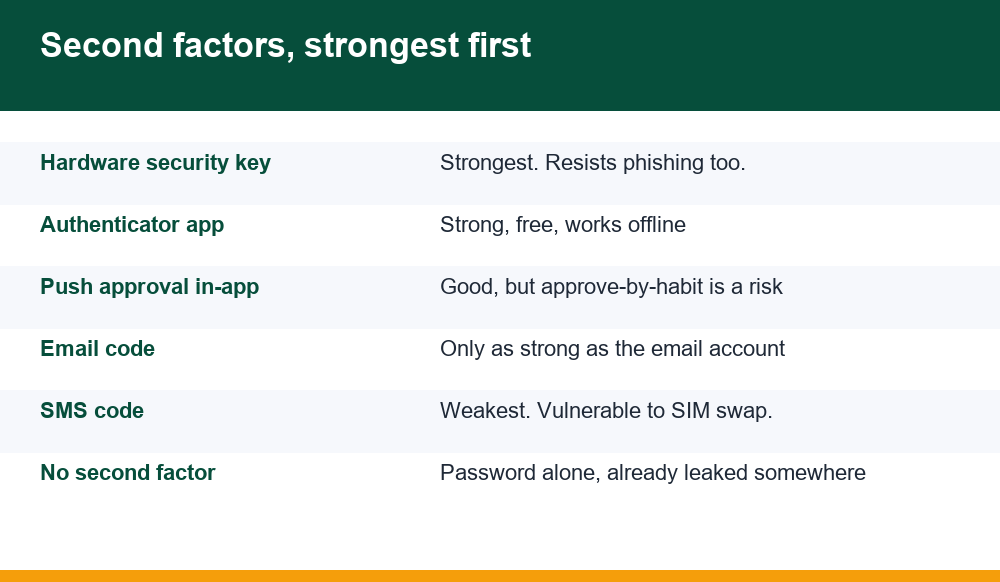
Not all second factors are equivalent, and the most commonly offered is the weakest.
SMS codes are better than nothing and vulnerable to SIM swapping, where an attacker persuades a mobile operator to move your number to their SIM. Authenticator apps generate codes on the device itself, with no number involved and nothing to reassign. Hardware keys go further by also resisting phishing, since the key verifies the site’s identity before responding.
For most gaming and wallet accounts, an authenticator app is the right balance: free, offline, and immune to the attack that defeats SMS. Use SMS only where nothing better is offered, and treat that platform as a weaker link accordingly.
Step three: set up the authenticator properly
Any reputable authenticator works, and they are interchangeable because they all implement the same standard. The decisions that matter are about backup rather than brand.
- Install one app and use it for everything, rather than scattering codes across several
- Choose whether you want encrypted cloud backup, and understand the trade-off
- Scan the QR code, then confirm with a generated code before leaving the page
- Check the account appears correctly labelled in the app
- Only then remove SMS as the second factor, not before
The cloud backup question is a genuine trade-off rather than a right answer. Backed-up codes survive a lost phone and depend on the security of that cloud account. Local-only codes cannot be stolen remotely and vanish with the handset. Either is defensible; drifting into one without deciding is not.
Step four: save the backup codes somewhere real
When two factor authentication is enabled, most services show a list of one-time backup codes exactly once. These exist for the day the phone is lost, stolen or broken, which is also the day you cannot generate a code.
The near-universal mistake is screenshotting them to the same phone that holds the authenticator. When that phone goes, both halves go together, and the account is gone with them. The second most common is closing the page intending to come back, which never happens.
Store them somewhere separate from the device: printed on paper, in a password manager that is itself protected by something other than this phone, or written down and kept with your documents. Treat them like spare keys, because that is exactly what they are.
Step five: close the side doors
An account is only as strong as its weakest recovery path, and most accounts have several that were set up years ago and forgotten.
Go through the security settings and look at every listed recovery option: old email addresses you no longer control, a previous phone number, security questions whose answers are on your social media. Each is an alternative route in that bypasses the second factor entirely.
- Remove recovery emails and numbers you no longer use
- Where security questions are mandatory, invent the answers and store them with your passwords
- Check for linked accounts and third-party app permissions, and revoke anything unrecognised
- Remove trusted-device exemptions on anything you no longer own
The security question point is worth taking seriously. A truthful answer to the name of your first school is not a secret, and treating these fields as a second password rather than a quiz removes a route that attackers rely on.
Step six: review active sessions and devices
Most platforms list where the account is currently logged in. Almost nobody looks, and almost everybody who does finds something they do not recognise, usually an old phone or a browser from a holiday.
End every session except the one in front of you. This matters especially when adding a second factor, because an attacker already logged in elsewhere keeps that access: the new protection applies to new logins, not to a session already established.
Order matters here. End the sessions first, then change the password, then enable two factor authentication. Doing it in the other order leaves a window where somebody else is still inside while you congratulate yourself on the new lock. Our guide to getting back into a lost gaming account covers what to do when that window was missed.
Step seven: test the recovery route
The last step is the one nobody does, and it is the difference between protection and a trap you have set for yourself.
Log out on a second device and log back in using a backup code rather than the app. This confirms the codes work, confirms you can find them, and confirms you know the process before you need it at a stressful moment.
Cross off the code you used, since each works once. Then put a note in your calendar for six months to check the whole arrangement again, because phones get replaced, numbers change and platforms redesign their settings pages without telling anyone.
What to do if you are locked out
It happens, and the outcome depends almost entirely on what you can demonstrate rather than on how convincingly you explain.
Start with the backup codes. If they are gone, check whether your authenticator app had cloud backup enabled, since restoring it on a new device recovers everything at once. If neither applies, you are into platform support, and that is where evidence decides the result.
Useful evidence: the registered email address, the approximate registration date, transaction references, the last deposit amount and method, and any identity document already verified on the account. Vague claims of ownership go nowhere; specific verifiable details are handled quickly.
Be patient with the process and suspicious of anybody who offers to speed it up. Accounts locked by two factor authentication attract a predictable second wave of fraud, in the form of recovery agents who ask for a fee and the remaining details they are missing.
Shared devices and family accounts
Everything above assumes one person and one device. A great many accounts are opened on a handset that gets passed around, and two factor authentication behaves differently in that situation.
The main hazard is a trusted-device setting. Marking a shared phone as trusted means the second factor is skipped on it entirely, which hands the protection away to whoever picks it up. On a device used by more than one person, decline that option every time it is offered.
The second hazard is biometric unlock on an app that holds codes. A fingerprint registered by somebody else, or a face unlock that works on a sibling, silently removes the barrier. It is worth checking which fingerprints are actually enrolled on a phone; most people have no idea and a surprising number find an extra one.
Where an account genuinely needs to be reachable by two people, the honest answer is shared credentials in a password manager with the second factor on one named device, rather than disabling the protection so both can get in. The first is inconvenient, the second is an unlocked account with extra steps.
A last practical note for anyone securing several accounts in one sitting, which is the sensible way to do it. Work from the most valuable outward: email first, then anything holding money, then anything holding a balance, then the rest. Expect the whole exercise to take about an hour for a dozen accounts, and expect to find at least two with a recovery route you had entirely forgotten.
That hour is also the only realistic opportunity to get it right, because nobody returns to this voluntarily. Setting two factor authentication up properly once, with the backup codes stored somewhere real and the side doors closed, is worth considerably more than setting it up casually on twenty accounts and discovering the gaps when one of them is already gone.
And if the list feels long, the ranking is forgiving. Email secured with an authenticator app, backup codes written on paper, and active sessions cleared covers the overwhelming majority of the real risk. The remaining steps are worth doing and are refinements rather than prerequisites, so a partial job done today beats a thorough one postponed indefinitely.
Frequently Asked Questions
Is an authenticator app better than SMS codes?
Yes, for one specific reason: authenticator codes are generated on the device and involve no phone number, so they cannot be defeated by a SIM swap. SMS is still far better than no second factor, but use it only where nothing else is offered.
Where should I store backup codes?
Anywhere other than the phone holding the authenticator. Printed on paper, in a password manager protected by something else, or with your documents. Screenshotting them to the same device means losing both halves together when the handset is lost.
Should I turn on cloud backup for my authenticator?
It is a genuine trade-off. Backup means a lost phone does not lock you out, at the cost of depending on that cloud account’s security. Local-only codes cannot be stolen remotely but disappear with the device. Decide deliberately rather than by default.
Does two factor authentication stop an attacker already logged in?
No. It applies to new logins, so an existing session continues unaffected. End all active sessions first, then change the password, then enable the second factor. Doing it in the other order leaves somebody else inside.
What if I lose my phone and the backup codes?
Contact platform support with specific, verifiable details: registered email, approximate registration date, recent transaction references and the last deposit method. Expect it to take time, and be wary of anyone offering to speed up recovery for a fee.
