Gaming App Keeps Crashing? 8 Easy Fixes That Actually Work
You tap the icon, the logo flashes for a second, and you are back on your home screen — when a gaming app keeps crashing like that, the frustration is doubled if there is real money sitting in the wallet behind the login. Maybe it dies mid-round, maybe it closes the moment you reach the payment page, maybe it worked fine yesterday and will not open today. The generic advice online — restart your phone, clear everything, reinstall — treats all of those as the same problem. They are not.
This breakdown orders eight fixes by how often each one actually resolves crashes in real-money gaming apps specifically, explains what each step does and does not delete, and — just as important — shows you how to recognise the one case where no fix on your phone will help, because the crash is happening on the app’s server, not your device.
Why a Gaming App Keeps Crashing in the First Place
Real-money gaming apps are heavier than they look. Most of them are not fully native apps at all — large parts of the interface are web pages rendered inside the app through a component called Android System WebView. That design means the app depends on three separate things working at once: its own code, the WebView component that belongs to the operating system, and a live connection to the operator’s servers. A failure in any one of the three shows up to you the same way: the app closes without warning.
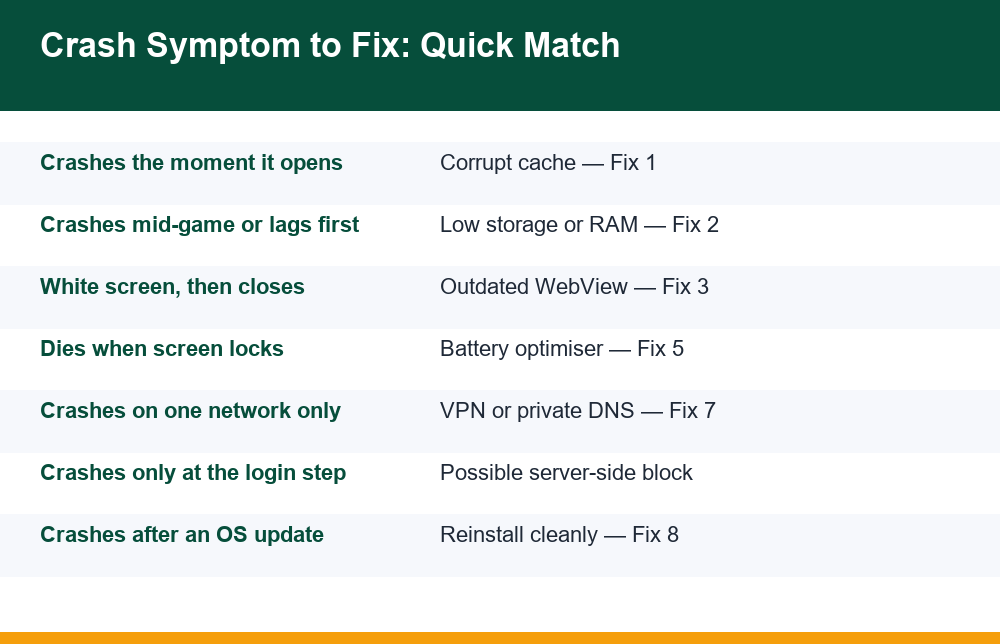
That is why the cause of a crash is usually revealed by when it happens rather than by any error message. An app that dies instantly on launch is usually choking on its own corrupt cached data. An app that opens, shows a white or blank screen, and then closes is almost always a WebView problem. An app that runs fine until you switch away and come back has been killed by the phone’s battery optimiser. And an app that loads normally but crashes at the exact same step every time — login, deposit, withdrawal — may not be crashing at all in the technical sense; it may be receiving a refusal from the server and handling it badly.
The eight fixes below are ordered by how often each one resolves the problem on a typical Android phone, so work from the top. Most people never need to go past Fix 4. Before any of it, one honest note: these steps fix the app, not the odds — real-money play carries risk, losses are the expected outcome over time, and this content is for adults 18 and over.
Two-Minute Checks Before You Change Anything
Before clearing anything or changing settings, rule out the causes that cost nothing to check. A surprising share of the cases where a gaming app keeps crashing turn out to be one of these, and each takes under a minute to check.
- Restart the phone. Not the app — the phone. A full restart clears stuck background processes and leaked memory that no in-app action can reach. If the app has run fine for weeks and suddenly crashes, do this first.
- Check whether other heavy apps also struggle. If your video apps stutter and your browser reloads tabs constantly, the problem is phone-wide (usually storage or RAM), not this one app.
- Try both Wi-Fi and mobile data. If the app crashes on one network but runs on the other, skip straight to Fix 7 — the problem is a network conflict, and no amount of cache clearing will touch it.
- Check the date and time settings. Apps that talk to secure servers can fail to establish a connection if the phone’s clock is wrong. Set date and time to automatic.
- Ask whether anyone else is affected. If the app’s own social channels or your contacts who use the same app report problems at the same time, the servers are down. Nothing on your phone fixes a server outage — wait it out.
If none of those checks explains it, the crash is specific to this app on this phone, and the fixes below apply. Keep note of exactly when the crash happens — on open, mid-session, or at one specific step — because that detail decides which fix matters.
Fix 1 and 2: Clear the Cache and Free Up Storage
Fix 1: Clear the cache — and understand what it does not touch
The cache is the app’s scratch space: downloaded images, fonts, interface files and temporary data kept on the phone so screens load faster. When a cached file is corrupted — often after an interrupted update or a forced shutdown — the app can crash every single time it tries to read that file, which is typically the moment it opens. Clearing the cache deletes only this scratch data. It does not touch your account, your balance, your game history or your login. All of that lives on the operator’s servers, not in the cache.
On most Android phones: Settings → Apps → select the gaming app → Storage → Clear cache. Note that this is a different button from “Clear data” or “Clear storage”, which signs you out and wipes local settings. Clear cache is always safe to press; clear data is the stronger step covered under Fix 8.
Fix 2: Free up storage space
Android needs free storage to function, and apps crash in strange ways when the phone runs close to full. When free space runs very low, the system starts failing to write temporary files, and an app that needs to cache a new screen simply dies instead. If the gaming app keeps crashing mid-session rather than on open, low storage is one of the first suspects. If your phone shows less than a few gigabytes free, delete old videos, clear downloads, and offload unused apps before retesting. This single step resolves a surprising share of mid-game crashes — the app opens fine because its cache already exists, then crashes later when it tries to write something new and cannot.
Fix 3 and 4: Update WebView and the App Itself
Fix 3: Update Android System WebView
This is the fix almost no generic article leads with, yet when a gaming app keeps crashing to a blank white screen, it is one of the most common real causes. Because so much of a typical gaming app is rendered web content, it depends on Android System WebView — a system component updated through the Play Store separately from the app and separately from Android itself. When WebView is outdated or has shipped a bad version (it has happened more than once, taking down thousands of unrelated apps in a single day), every app that relies on it can crash at once.
The signature symptom: the app opens, shows a blank or white screen for a moment, then closes. To update it, open the Play Store, search for Android System WebView, and tap Update if the button is available. Update Google Chrome at the same time, since on many Android versions Chrome supplies the WebView engine. Restart the phone afterwards so running apps pick up the new component.
Fix 4: Update — or roll back expectations on — the app itself
An outdated app version eventually stops matching the server it talks to. Operators change their server interfaces, and old app versions crash at the exact step where the mismatch bites — often login or the wallet screen. If the app came from the Play Store, update it there. If it was installed from an APK file outside the store, you will need the newer APK from the same source you originally used, and you should be aware that side-loaded apps do not update themselves — a crash after months of fine service is very often simply a stale version.
A genuinely new crash immediately after an update, on the other hand, points to a bad release; if the app’s own support channel confirms it, the only fix is waiting for the next version.
Fix 5 and 6: Stop the Phone From Killing the App
Fix 5: Exempt the app from battery optimisation
Android aggressively kills background apps to save battery, and several large phone brands layer their own even more aggressive “battery manager” on top of it. To the system, a gaming app holding a live session open is a prime target. The result from your side: you switch to another app for a minute, switch back, and the game either restarts from scratch or crashes outright — sometimes mid-hand, mid-round or mid-deposit. The session you had is gone.
The fix is to exempt the app: Settings → Apps → the gaming app → Battery → choose Unrestricted (wording varies: “Don’t optimise”, “No restrictions”, “Allow background activity”). On phones with a brand-specific battery manager, check that app too and mark the gaming app as protected. This does not make the app drain more battery while closed — it only stops the system from force-killing it while you are actively using it.
Fix 6: Check background data and app permissions
A related setting restricts an app’s data in the background rather than the app itself. If background data is blocked, the app can crash the moment it tries to refresh a balance or verify a session while not in the foreground. Enable background data under Settings → Apps → the app → Mobile data. While you are on the app’s settings page, review what it is and is not allowed to access — a denied permission the app considers essential can cause a crash loop at the exact feature that needs it.
There is a separate breakdown of which permissions a gaming app genuinely needs and which it does not that is worth reading before you grant anything new, because the right answer is not “allow everything”.
Fix 7: Rule Out VPN, Private DNS and Network Conflicts
If the app crashes on one network but works on another — or started crashing the day you installed a VPN — the problem is not on your phone’s storage at all. Real-money gaming apps are unusually sensitive to how traffic reaches them. Many of them actively detect VPNs and proxy connections, and rather than showing a clear message, some simply fail to establish a session and close. Others crash because the VPN adds enough latency that a connection times out mid-handshake.
Three settings are worth checking in order:
- VPN. Turn off any VPN completely — not just disconnect, but disable it as an always-on VPN under Settings → Network → VPN — then force-close the app and reopen it.
- Private DNS. Under Settings → Network → Private DNS, a custom DNS provider (often set once and forgotten) can block or misroute the domains the app depends on. Set it to Automatic as a test.
- Data saver and ad blockers. System-wide data saver, and any ad-blocking app that works by routing traffic through a local VPN, can strip requests the app needs. Pause them and retest.
If the app works the moment the VPN or custom DNS is off, you have your answer. Be aware of the trade: an app that refuses connections through a VPN is enforcing a server-side rule, and routing around such rules tends to end with the account flagged — which leads directly to the last section of this piece.
Fix 8: Reinstall the Right Way and Know What You Lose
Reinstalling is the last fix, not the first, because it is the only one with a real cost — and because if Fixes 1 to 7 did not work, there is a fair chance reinstalling will not either. Done in the right order, though, it clears every local cause at once: corrupt data, a broken update, a bad install.
What a reinstall deletes and what it does not: your account, balance, transaction history and KYC status live on the operator’s servers and survive a reinstall untouched. What you lose is everything local — saved login, remembered preferences, and any session that was open. The practical consequence is that you must be able to log back in, which means your registered mobile number must be able to receive a verification code. If that number is unreachable or codes are not arriving, fix that first — there is a separate step-by-step piece on what to do when the OTP is not coming on a gaming app — because reinstalling while locked out of OTP turns a crashing app into an inaccessible account.
The clean-reinstall order that avoids leftover corrupt files: open Settings → Apps → the app → Storage and tap Clear data first; then uninstall; then restart the phone; then reinstall from the same source as before; then log in fresh. Installing the new copy on top of old data — which is what a plain uninstall/reinstall sometimes leaves behind — can carry the corruption straight into the new install, which is why the clear-data step comes first.
| Step | What it clears | What survives |
|---|---|---|
| Clear cache (Fix 1) | Temporary files only | Login, settings, account, balance |
| Clear data (Fix 8) | Login, local settings, downloads | Account, balance, history on server |
| Uninstall + reinstall | The app and all local traces | Account, balance, KYC on server |
| Nothing on your phone | — | A server-side block (see below) |
If a clean reinstall on a phone with free storage, updated WebView and no VPN still crashes at the same point, stop fixing. The remaining explanations are a bad app release affecting everyone — checkable through the app’s own support channel — or something aimed at your account specifically.
When a Crash Is a Block, Not a Bug
Here is the part most crash-fix articles never mention. Some real-money gaming apps handle server-side refusals badly: instead of showing “your account has been restricted” or “withdrawals are under review”, the app throws an unhandled error and closes. From your side it looks identical to a technical crash. The difference shows in the pattern.
Signs the crash is actually a block or server-side restriction rather than a fault on your phone: it happens at the same step every time (login, deposit, or — most tellingly — withdrawal) while the rest of the app works; it follows the same pattern on a second device or in the app’s website version in a browser; it started right after a large win, a withdrawal request, or a dispute; and no fix in this list changes anything. A crash that only ever happens when you try to take money out is not a cache problem.
If that pattern fits, switch from fixing to documenting. Screen-record the crash from app open to close, note dates, amounts and the step where it dies, and keep copies of every deposit and withdrawal record you can reach through the app’s website version or your payment statements. Contact the app’s official support in writing and keep the replies. If a balance is being made unreachable and support goes silent or stalls indefinitely, there is a separate breakdown of what a withdrawal stuck in processing really means and what to do at each stage.
For financial fraud — a balance that vanishes, deposits taken without credit, or an app that disappears entirely — you can file a complaint with supporting evidence through the Indian government’s National Cybercrime Reporting Portal or its 1930 helpline; your documentation is exactly what such a report needs.
The honest summary: when a gaming app keeps crashing, the fix is usually boring — cache, storage, WebView, battery settings — and takes under fifteen minutes from the top of this list. The one case that matters more is the crash that is not a crash. Knowing the difference protects more than your evening’s play; it protects your record of what happened if the problem was never on your phone at all.
Frequently Asked Questions
Why does a gaming app crash on opening?
An instant crash on launch is most often corrupt cached data — clear the app’s cache under Settings → Apps → Storage. If the app shows a blank or white screen first and then closes, the usual cause is an outdated Android System WebView component; update it and Chrome through the Play Store, then restart the phone.
Does clearing cache delete my account or balance?
No. The cache holds only temporary files such as images and interface data. Your account, balance, history and KYC status are stored on the operator’s servers and are untouched. The separate ‘Clear data’ button does sign you out and wipe local settings, but even that never deletes the server-side account or balance.
Why does the app crash only on my phone?
If the same gaming app keeps crashing only on your phone while it works for others, the cause is local: low free storage, an outdated WebView, an aggressive battery optimiser killing the app, or a VPN or private DNS setting interfering with its connection. Work through those four in that order — testing on both Wi-Fi and mobile data quickly shows whether the network is the trigger.
Can outdated WebView crash gaming apps?
Yes, and it is one of the most common causes. Most real-money gaming apps render much of their interface through Android System WebView, so an outdated or faulty WebView version can crash the app every time it opens — typically a blank screen followed by a close. Updating WebView and Chrome in the Play Store fixes it.
When is a crash actually a blocked account?
When it happens at the same step every time — especially login or withdrawal — while everything else works, repeats on a second device or in the browser version, began after a big win or withdrawal request, and survives every fix including a clean reinstall. At that point document the crash and your transactions instead of continuing to troubleshoot.
Should I reinstall, and what do I lose if I do?
Reinstall only after cache, storage, WebView, battery and network fixes have failed. You lose local data: saved login, preferences and any open session. Your account, balance and history remain on the server. Make sure you can receive the login OTP on your registered number before uninstalling, or you risk locking yourself out.
